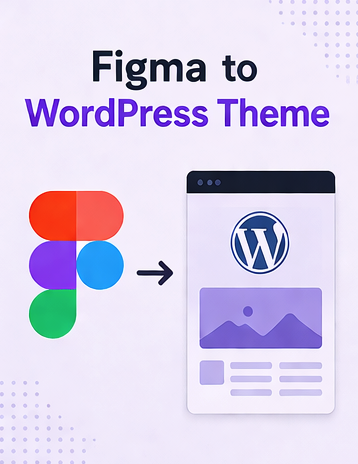
What "Figma to WordPress" actually means
Read this first — it saves confusion.
"Figma to WordPress Theme" is a design transfer, not a content migration. Your Figma file is a design system — typography, colors, components, spacing, hover states, breakpoints.
HTMLtoWP turns that design into a real WordPress theme:
header.php, footer.php, functions.php, the full template hierarchy (page.php, single.php, archive.php, 404.php), enqueued styles and scripts, dynamic wp_nav_menu(), registered sidebars.
Once installed, you add real Pages, Posts, and Menus through WP admin — exactly as WordPress is designed to work.
How to convert Figma to a WordPress
Export your Figma design as HTML/CSS/images
Use whichever Figma export tool fits your workflow. Whichever you pick, the output is the same shape: a folder with index.html plus CSS and image assets. Zip that folder and upload it in step 2.
Convert that HTML into a real WordPress theme
This is the work HTMLtoWP automates: splitting your HTML into the WordPress theme structure (homepage plus default templates for posts and pages), replacing the hardcoded menu with a dynamic wp_nav_menu(), rewriting asset paths to WordPress get_template_directory_uri(), generating functions.php with proper enqueues, registering sidebars and theme support, and packaging it as one installable ZIP. Extra HTML pages in the folder become unique page templates.
Full step-by-step guide in How to convert HTML/CSS to a WordPress theme is here.
Optional theme customizations: use the customization chat in plain English — "make the header sticky", "add a sidebar with a search widget", "change the menu hover color". Each request modifies your theme files for you. No coding required.
Total: 5–30 minutes after the Figma to HTML export. For projects that also need custom plugins, complex integrations, or ongoing maintenance, hiring a developer is still the right path for those parts — HTMLtoWP just gives designers a faster lane for the Figma to WordPress Theme conversion itself.
Before you convert: things to know
- Auto-layout doesn't always translate cleanly.
Some plugins emit fixed widths instead of Flexbox. After conversion, ask the chat to "make this fully responsive" if mobile feels rigid. - Component overrides can be fragile.
Designs with deeply-nested overrides may lose customizations during HTML export. Worth flattening tricky components in Figma first. - Text styles vs. local overrides.
Figma text styles export cleanly; local overrides may end up as inline styles. Consolidate them into your stylesheet for cleaner WordPress Customizer support after conversion. - Images at 1× by default.
Most plugins ship images at 1×, which can look fuzzy on retina. Re-export key assets at 2× from Figma directly before the WordPress theme conversion.
Once your Figma design is out as HTML, the WordPress side takes minutes.
Figma to WordPress: Frequently Asked Questions
Can you convert Figma to WordPress directly?
Not in a single click — Figma has no native "export to WordPress" option. The reliable route is two steps: export your Figma frames to HTML/CSS/images, then convert that HTML into a WordPress theme. HTMLtoWP automates the second step.
Is there a Figma to WordPress plugin?
There are Figma plugins that export your design to HTML/CSS/images, but they stop at static markup — they don't produce a WordPress theme with functions.php, template files, or a dynamic menu. HTMLtoWP picks up where those plugins leave off and turns the exported HTML into an installable theme.
Can I convert Figma to a WordPress theme without coding?
Yes. The whole point of this workflow is that a designer never touches PHP. You export the HTML, upload it, and get a real WordPress theme back. Any tweaks — sticky header, extra sidebar, hover colors — are made through a plain-English chat, no code required.
Figma to WordPress vs. rebuilding in Elementor or a page builder — which is faster?
Rebuilding a Figma design by hand in Elementor, Divi, or Gutenberg means recreating every section, spacing value, and breakpoint manually — hours of pixel-matching. Converting the exported HTML into a theme preserves your design as-is, so you skip the rebuild entirely.
How long does the Figma to WordPress theme conversion take?
The Figma-to-HTML export takes a few minutes depending on your tool. The HTML-to-WordPress-theme step with HTMLtoWP takes roughly 5–30 minutes, including optional chat customizations — so most designs go from Figma to an installable theme in under an hour.
Will my WordPress theme look exactly like my Figma design?
The conversion is design-perfect for the exported HTML, so the layout, typography, and colors carry over faithfully. A few things depend on your export tool — auto-layout, 1× images, and deeply-nested component overrides (see the section above) — and any rough edges are quick to fix from the chat.
Convert your Figma design to a WordPress theme.
Whichever Figma export tool you used, the next step is the same: upload your HTML, get a real WordPress theme — in minutes.
Try HTMLtoWP →